Computing · simulation · grades 3–9

A school computer where nothing can break.

The virtual computer is a simulation right in the browser: two different virtual operating systems and a computer network. Students complete tasks as on a school computer and learn by really doing them.

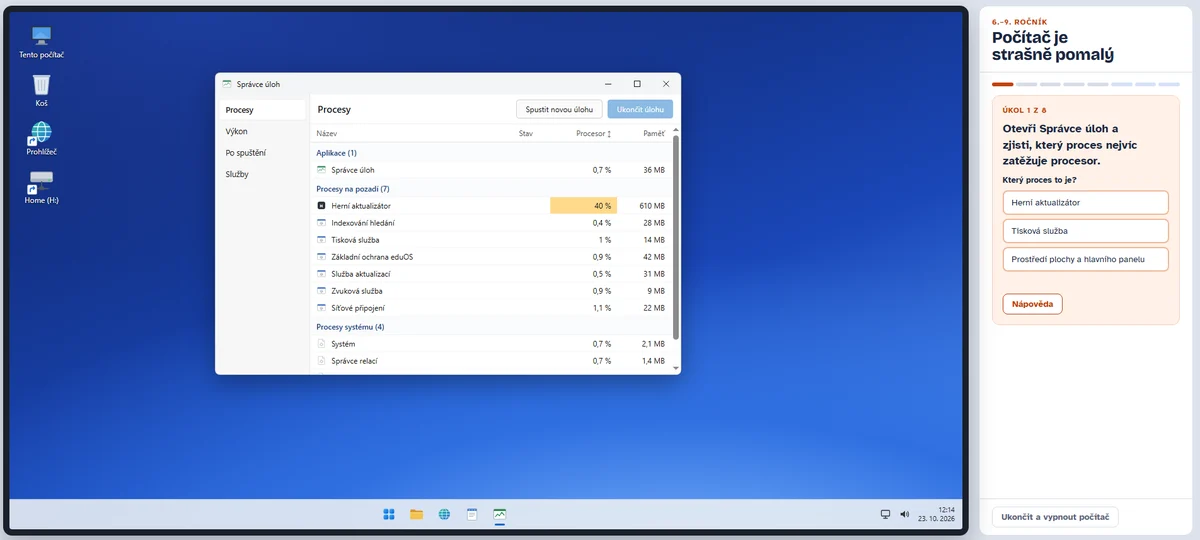
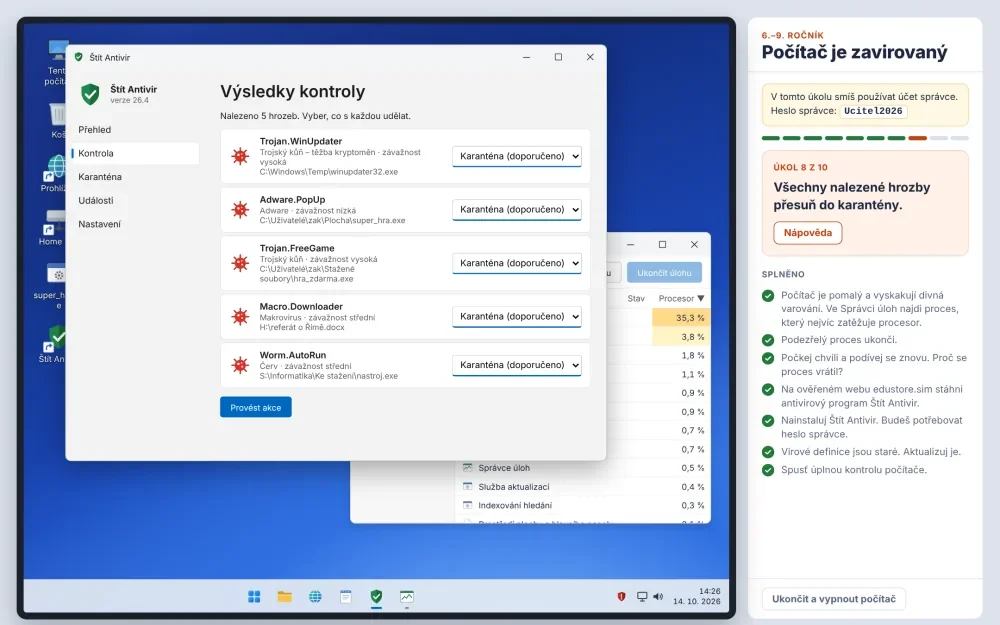
Virtual computer: a student moves the threats found to quarantine, with the task list on the right
⚠️

This page is for trying things out only

Here you can go through the simulations in practice mode – results are not saved anywhere. Students must start the game via the eduKuba website from the link from the teacher. Only then are their progress, mistakes and feedback passed on to the teacher's overview.

How it works

Three steps to a lesson

Sign up at eduKuba.cz

Create a teacher account and set up a class.

Send students the link to the game

The student opens the module via the eduKuba website, enters a nickname, picks a class and starts working.

Follow the results

In the teacher's overview you see progress, mistakes and feedback from students – a basis for formative assessment.

Three modules

From the first window to the terminal

The modules build on each other: first a virtual operating system similar to Windows, then problems in a home computer network and finally Linux. The student picks a topic and goes through short tasks with hints that do not give away the solution.

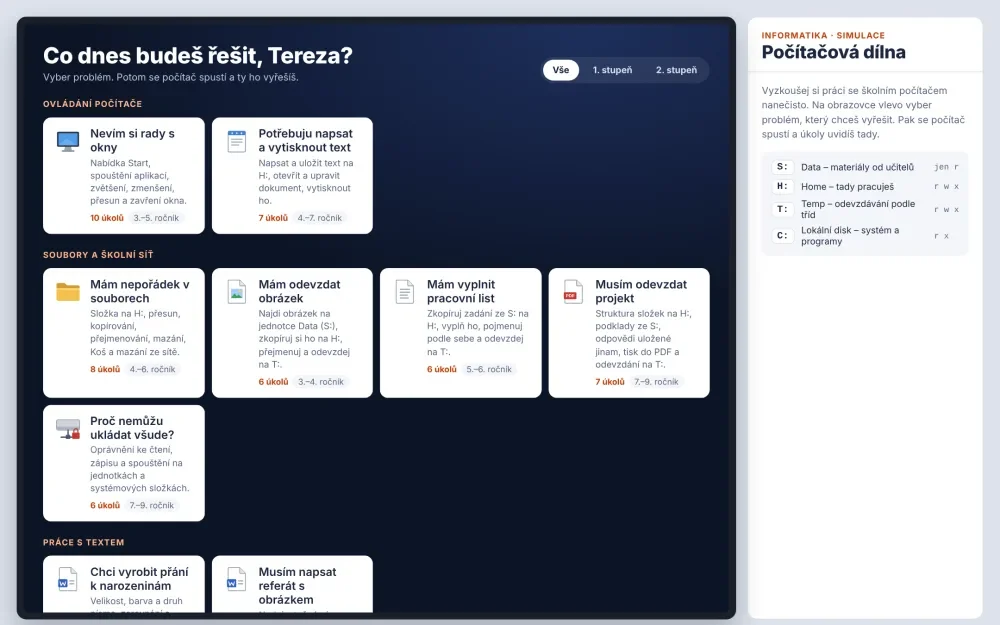
Topic selection in the Computer Workshop
Module 1 · grades 3–9

Computer Workshop

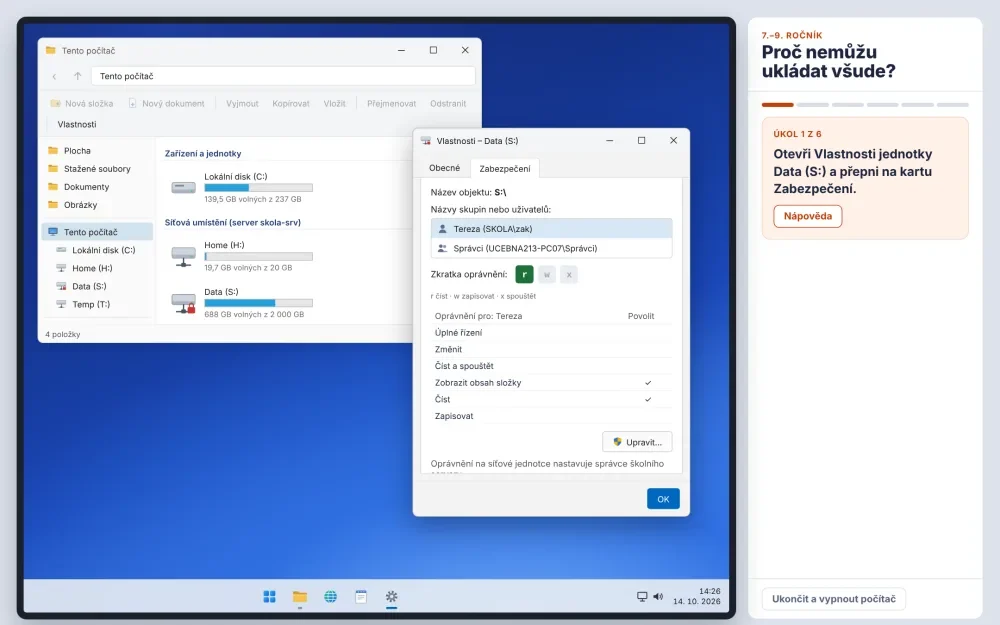
A virtual operating system with school drives as in a real classroom. Students safely try out everyday work with a computer in it.

  • windows, apps and the Start menu
  • folders, moving, copying, the Recycle Bin
  • the Data, Home and Temp drives and permissions
  • a report with a picture, printing to PDF, handing in
  • antivirus, quarantine and Task Manager
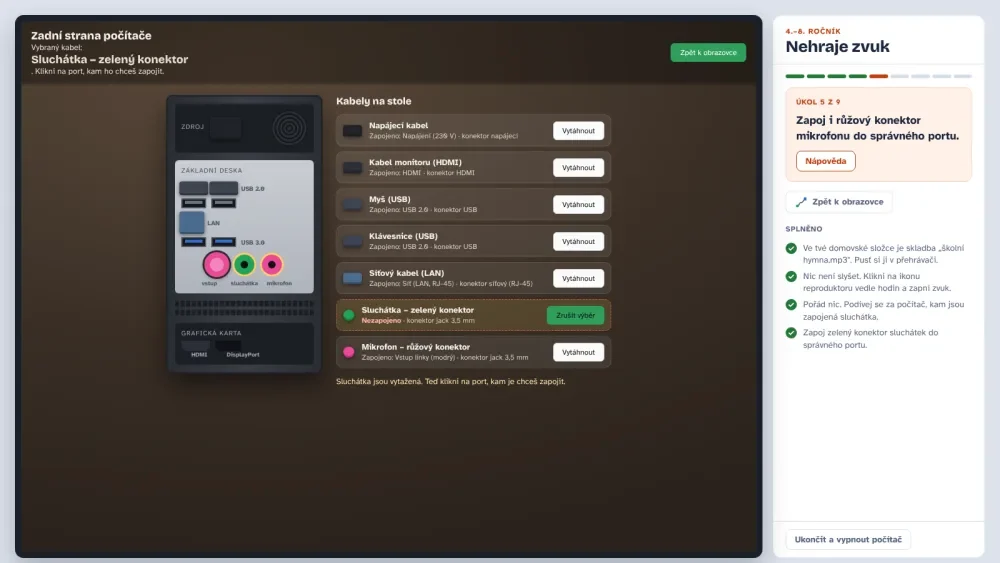
  • Fault mode: no sound, the mouse does not work – the student looks for the cause alone, even behind the computer
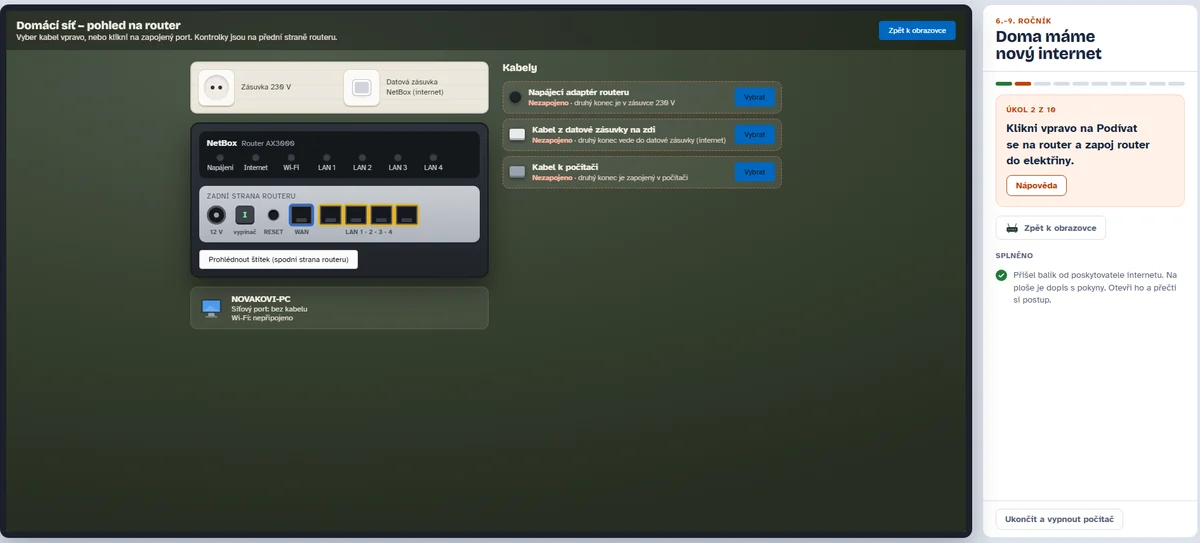
Network Workshop: connecting a home router
Module 2 · grades 6–9

Network Workshop

Home and school networks up close. Students connect a router, measure internet speed and secure the Wi-Fi.

  • connecting a router: power, WAN and LAN
  • Wi-Fi, the password and the router label
  • download speed, upload speed and ping
  • unknown devices on the network and security
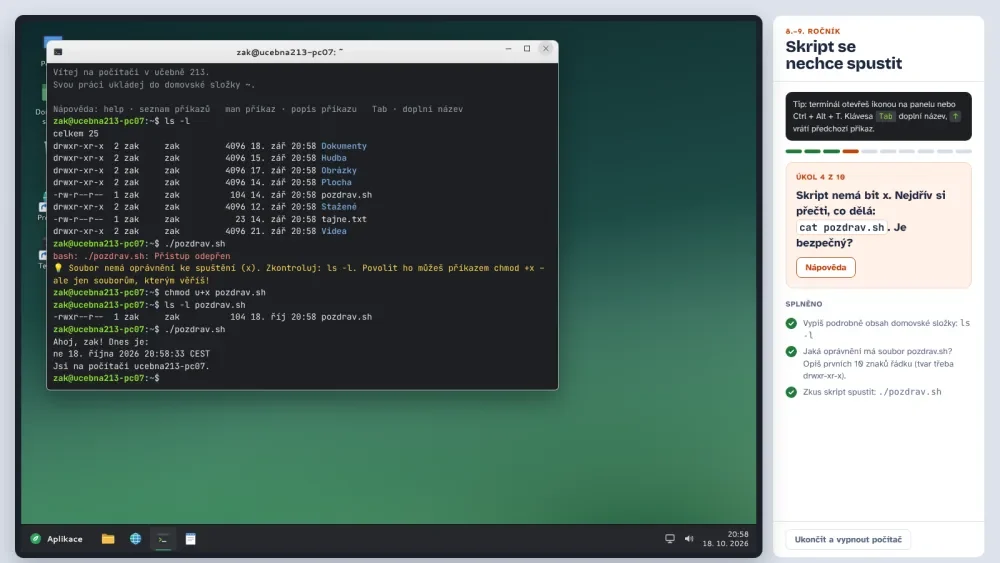
Linux Workshop: terminal and file permissions
Module 3 · grades 8–9 · high school

Linux Workshop

A real terminal without fear. Students find out that the command line is not magic but a tool.

  • finding your way around files: ls, cd, cat
  • rwx permissions and chmod
  • security: read first, then run
  • help, man and tab completion
What it looks like

Screenshots from the simulation

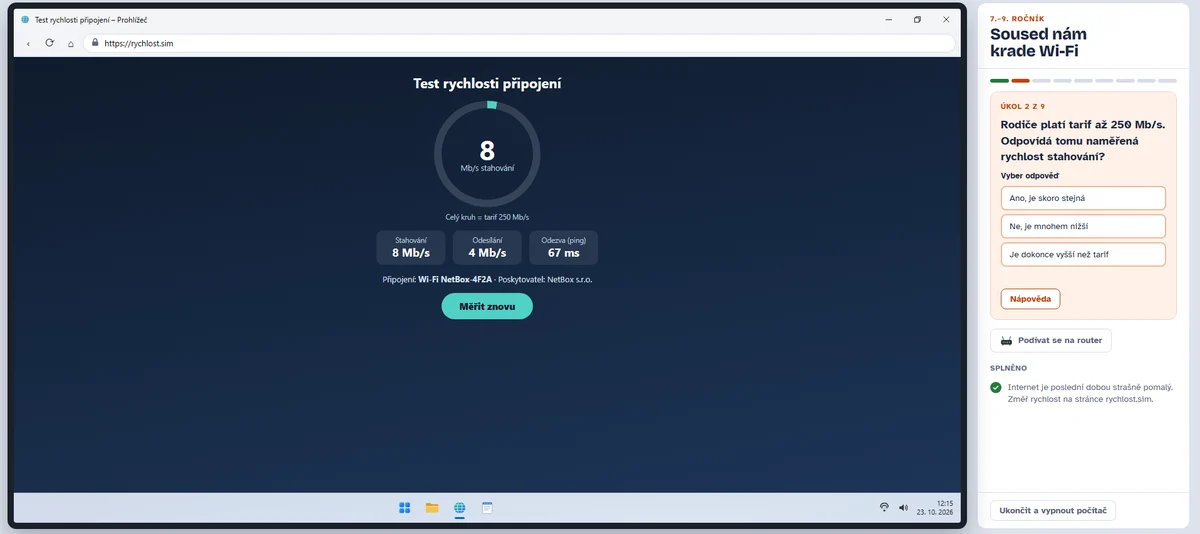
The computer on the left, the task on the right. Finished tasks get ticked off and a hint is always at hand. Click a picture to enlarge it.

What students learn

Skills they will really use at school and at home

1

Operate a computer independently

Open, save, find and hand in – without calling “teacher, mine disappeared”.

2

Keep their data in order

Understand folders, drives and where things are saved and why.

3

Cope with a fault

In Fault mode, not panic, find the cause, try a solution and check that it works.

4

Behave safely

Understand permissions, not run unknown files and know why writing somewhere is not possible.

Alignment with the Czech curriculum (RVP ZV)

Which expected outcomes we develop

Educational area Computing, thematic unit Digital technologies.

Primary level (grades 1–5) Digital technologies

I-5-4-01
Finds and launches an application, works with data of various types.Computer Workshop
I-5-4-02
Connects digital devices and states the possible risks connected with it.Computer Workshop (Fault mode)
I-5-4-03
Follows safety and other rules for working with digital technologies.all modules

Lower secondary level (grades 6–9) Digital technologies

I-9-4-01
Describes how a computer works in terms of both hardware and operating system.Computer Workshop · Linux Workshop
I-9-4-02
Saves and manages their data in a suitable format with regard to further processing or transfer.Computer Workshop
I-9-4-03
Chooses a suitable way to connect a device to a network, gives examples of networks.Network Workshop
I-9-4-04
Describes how to protect against security risks connected with technologies.all modules
Key competences: digital problem solving learning work-related
Why a simulation

Benefits for teachers and students

Teaching how to use a computer on a real network means risk, chaos and ten hands up at once. A simulation changes that.

For teachers

  • ✓
    No classroom preparationNo copying files, setting permissions or cleaning up after the lesson.
  • ✓
    An overview of every studentYou see how far each one got, how many tries they made and where they made mistakes.
  • ✓
    Differentiation by itselfEveryone goes at their own pace; faster ones continue with the next scenario.
  • ✓
    A safe environmentStudents can delete, change permissions and even rewire cables – nothing breaks.
  • ✓
    Works everywhereAll you need is a browser – on Windows, a Chromebook, a tablet or at home.

For students

  • ✓
    Tasks from real lifeSave, find, hand in a project, connect to a network – what they really need.
  • ✓
    A mistake is nothing to be ashamed ofThey can try, get it wrong and try again – without fear of breaking something.
  • ✓
    A hint, not the solutionIt nudges in the right direction, but they have to find the answer themselves.
  • ✓
    Instant feedbackThey see right away what went well, and finished tasks get ticked off.
  • ✓
    Transfer to practiceWhat they manage in the simulation, they will then do on a school computer too.

Try it out in class

Registration is free, with no ads. Students play via the eduKuba website, and you see the results.